Time Blocking Template: A Free Daily and Weekly Layout to Copy
A free time blocking template for one day and one week, plus how to set it up in Google Calendar, how big to make the blocks and a filled-in example.
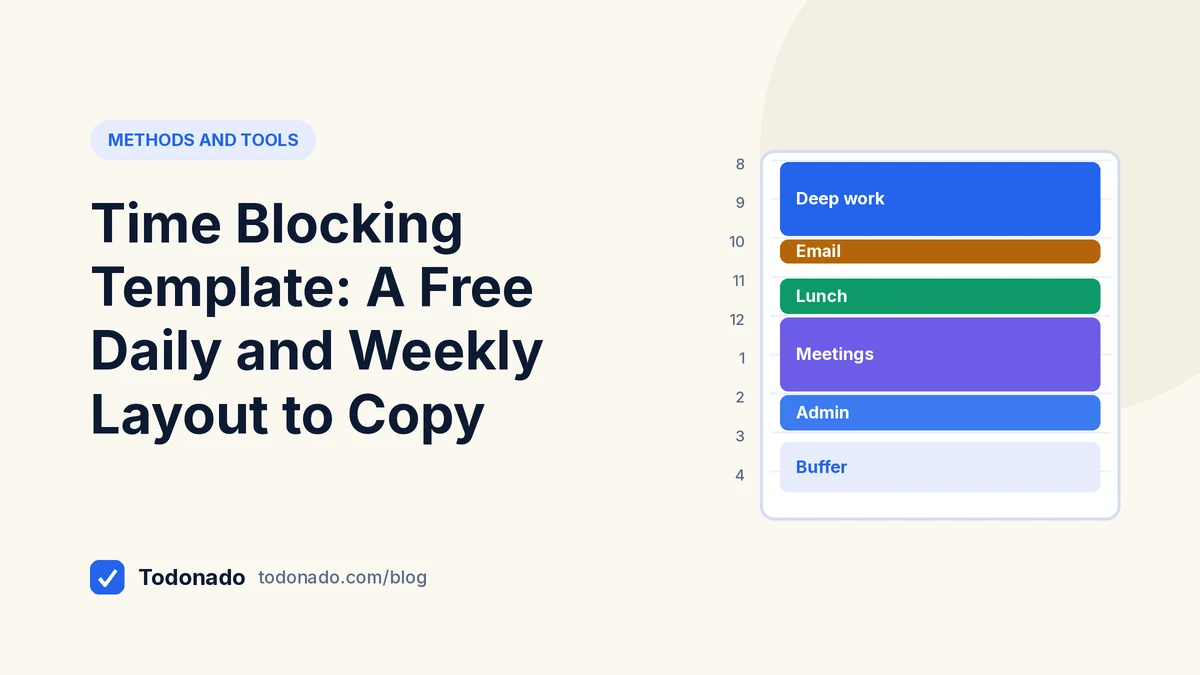
Copy the daily template below, fill in your fixed commitments first, then add two or three focus blocks of 60 to 120 minutes for your most important work, one or two admin blocks for email and small tasks, and at least one empty buffer block. Leave about a quarter of the day unblocked. That is a time blocking template that survives a real day. There is a weekly version further down, and a short guide to setting the same thing up in Google Calendar.
Time blocking means giving each part of your day a job before the day starts. It is different from timeboxing, which caps how long one task can take. Our hub guide on timeboxing vs time blocking explains when to use which. This page is the practical part: templates you can copy today.
Daily time blocking template
Copy this into a notebook, a document or a note on your phone. It prints on one page.
DATE: __________    WORK HOURS: ____ to ____

FIXED (meetings, calls, school run)
____  to ____   ______________________
____  to ____   ______________________

FOCUS BLOCKS (60 to 120 min, one task each)
____  to ____   ______________________
____  to ____   ______________________

ADMIN BLOCKS (email, messages, small tasks)
____  to ____
____  to ____

BUFFER (leave empty)
____  to ____

SHUTDOWN (10 min): what moves to tomorrow?
The four block types
| Block | Length | What goes in it |
|---|---|---|
| Fixed | As scheduled | Meetings and anything with a set time |
| Focus | 60 to 120 min | One important task, no email |
| Admin | 20 to 45 min | Email, messages, forms, quick jobs |
| Buffer | 30 to 60 min | Nothing planned; absorbs overruns |
The order matters. Fixed blocks go in first because you cannot move them. Focus blocks go in next, ideally at the time of day you think best. Admin fills gaps. Buffer goes where overruns are most likely, often mid-afternoon.
Weekly time blocking template
A weekly view helps you place big work across the days before the week fills up.
WEEK OF: __________

        MON       TUE       WED       THU       FRI
AM   [focus]   [focus]   [meet]    [focus]   [admin]
     [admin]   [meet]    [focus]   [admin]   [buffer]
PM   [meet]    [admin]   [admin]   [meet]    [review]
     [buffer]  [focus]   [buffer]  [focus]   [shutdown]

THIS WEEK'S FOCUS TASKS
1. ______________   block: ______
2. ______________   block: ______
3. ______________   block: ______
Use it on Monday morning or Friday afternoon. Our guide on how to plan your work week has a 30-minute routine that pairs well with this weekly layout.
A filled-in example
Here is the daily layout filled in by a product designer with a 9:00 to 17:30 day.
| Time | Block | Task |
|---|---|---|
| 9:00 to 9:30 | Admin | Email, messages, plan check |
| 9:30 to 11:30 | Focus | New onboarding screens |
| 11:30 to 12:00 | Fixed | Team stand-up |
| 12:00 to 13:00 | Lunch | |
| 13:00 to 13:30 | Admin | Feedback replies |
| 13:30 to 14:30 | Fixed | Review with product manager |
| 14:30 to 15:15 | Buffer | Empty |
| 15:15 to 16:45 | Focus | Revise screens after review |
| 16:45 to 17:15 | Admin | Email, small tasks |
| 17:15 to 17:30 | Shutdown | Move leftovers to tomorrow |
That is 3 hours 30 minutes of focus, 1 hour 30 minutes of admin, 1 hour 30 minutes of meetings and 45 minutes of buffer. On this day the review ran 20 minutes over. The buffer took it, and the second focus block still started on time.
How to fill in the template in ten minutes
The first time takes longer. After a week, filling in tomorrow's page takes about ten minutes. Here is the order that works.
- Write your work hours at the top. Be honest. If you always start at 9:20, write 9:20.
- Copy in fixed commitments. Meetings, calls, the school run, the gym class. These are the walls of the day.
- Look at the gaps. Which gaps are longer than an hour? Those are your only real chances for focus work. If there are none, that is important news, and it is better to know it the evening before.
- Put your most important task in the best gap. One task per focus block. If you have two big tasks and one long gap, pick one. The other goes into tomorrow.
- Add admin blocks around the edges. First thing, after lunch and at the end of the day are common choices.
- Mark one buffer and stop. Do not fill the buffer, even if you are tempted.
People often skip step 3. It is the step that turns a list of hopes into a plan. A day with five meetings spread out every 90 minutes has no gap long enough for real focus. Seeing that on paper is a good reason to move one meeting, or to accept that today is an admin day and protect tomorrow instead.
How to set up time blocking in Google Calendar
You can run the template in Google Calendar with standard features. No add-ons needed.
- Make one calendar for blocks. In Google Calendar, add a new calendar called "Blocks". That keeps your blocks separate from meetings, and you can hide them with one click.
- Pick a colour per block type. For example, blue for focus, grey for admin, green for buffer.
- Create repeating blocks for the routine parts. Admin at 9:00 and 16:45 every weekday, for example. Set them to repeat.
- Add focus blocks each week. Name each one after its task: "Focus: onboarding screens", not just "Focus".
- Mark focus blocks as busy. Others who can see your calendar will then see you are not free.
If your work account offers a dedicated focus time event type, it can decline meetings for you during focus blocks. Check what your account supports, because features vary by plan.
Time blocking with Todonado
Todonado is not a calendar, and it does not draw time blocks. It solves the step before: deciding what fits. You add tasks with effort estimates in minutes, set your capacity for the day, and the capacity meter shows when the day is full. That tells you how much work your focus blocks can actually hold before you put them on the calendar.
On Free, you can import your calendar as an .ics file, so meetings are in view when you plan. On Pro, live calendar sync keeps meetings up to date, and the week view shows seven days of capacity side by side. Focus mode, with Pomodoro, is free and works well inside a focus block.
How to make blocks that last
- Leave a quarter of the day empty. Days with every minute blocked break by mid-morning.
- One task per focus block. A block called "deep work" invites drifting. A block called "draft section 2" does not.
- Move blocks, do not delete them. When a block is missed, move it to another slot that day or week.
- Review on Friday. See which blocks held and which did not. A short weekly review is a good place for this.
When time blocking does not suit you
If your day is mostly reactive, such as support work or care, long focus blocks will often break. Use shorter blocks, or switch to timeboxing single tasks as gaps appear. And if blocking every hour makes you anxious, block only the focus work and leave the rest of the day loose. The hub guide to timeboxing vs time blocking has a test for choosing between them.
FAQ
How big should a time block be? Focus blocks of 60 to 120 minutes work for most people. Admin blocks of 20 to 45 minutes.
Should I block my whole day? No. Block fixed commitments and focus work, and leave buffer. A quarter of the day unblocked is a good start.
Is there a printable time blocking template? Yes, the daily template above is designed to print on one page. Paste it into any document and print.